

WURFL Gateway MCP
The WURFL Gateway MCP gives your AI assistant direct access to the WURFL device database — the same authoritative data that powers device detection and targeting for applications worldwide. Ask questions about specific devices, search the catalog by capability, analyze a brand's device portfolio, or identify a device from its User-Agent string, all without writing a query or reading through API documentation.
Note: The WURFL Gateway MCP requires an active QuWURFL subscription. Some features are available without a subscription — see Identify a Device below.
Introduction
With the WURFL Gateway MCP, your AI assistant can:
- Identify any device from a User-Agent string or HTTP headers, with access to WURFL's full capability set
- Search the device catalog using capability-based filters and natural language criteria
- Find all regional and carrier variants of a specific device model
- Compare devices side by side across any set of capabilities
- Analyze a brand's device portfolio and market composition
- Analyze how capability values are distributed across a brand or device category
Ready to get started? Jump to setup →
What the WURFL Gateway MCP Can Do
Identify a Device
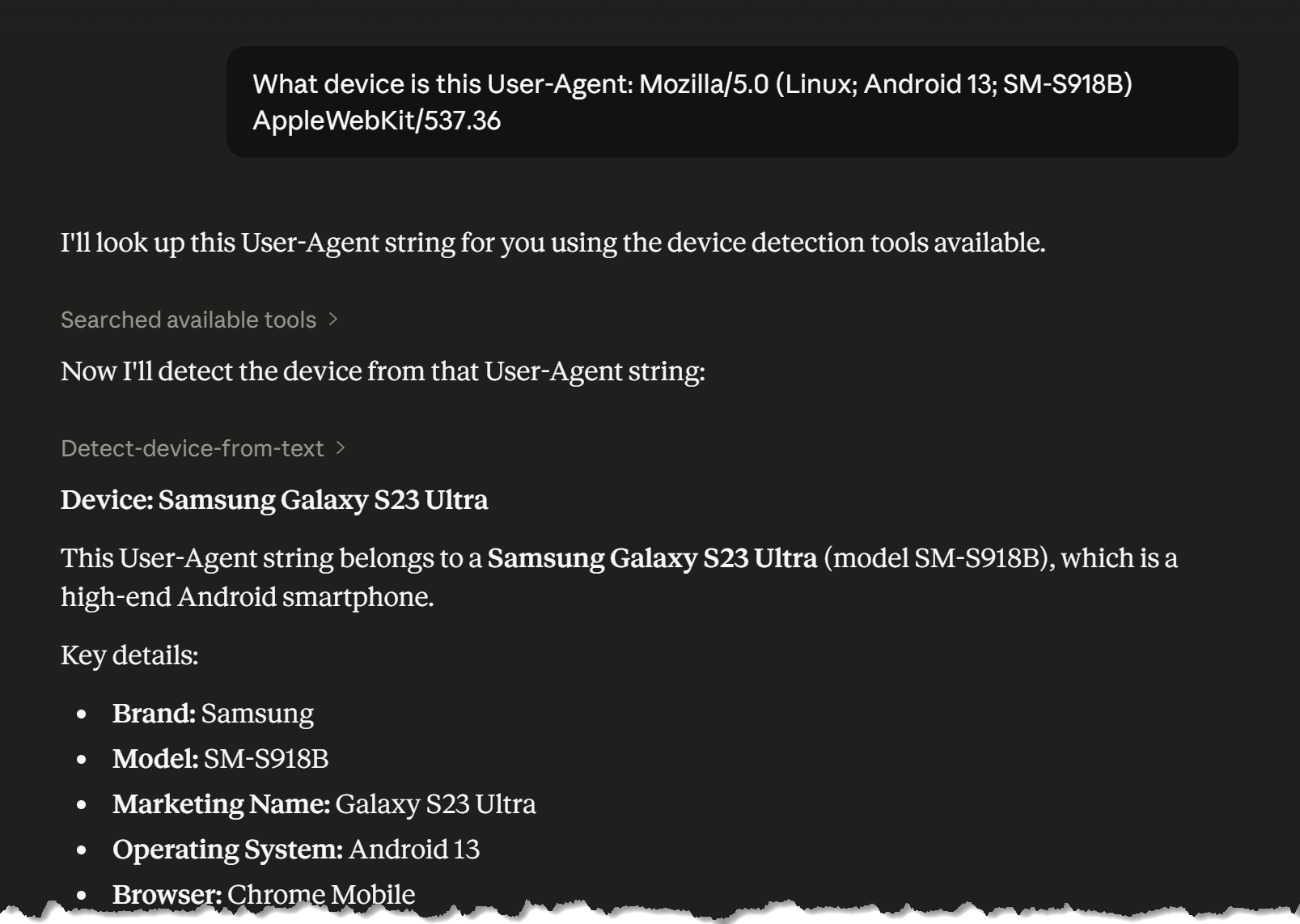
Submit a User-Agent string or HTTP headers and get back a detailed device profile. Detection returns a curated set of the most relevant capabilities — form factor, OS, screen dimensions, and more — along with the device's WURFL ID. Use that ID to query any additional WURFL capability directly, giving you access to the full capability set beyond the default profile.
For the most accurate results, include Client Hints headers alongside the User-Agent string. Modern browsers using reduced User-Agent strings may resolve to a generic device without them.
Example: "What device is this User-Agent: Mozilla/5.0 (Linux; Android 13; SM-S918B) AppleWebKit/537.36"
Example: "Identify this device and return its screen resolution, OS version, and whether it's a smartphone: [UA + Client Hints headers]"
Note: Device identification does not require a QuWURFL subscription.
Search for Devices
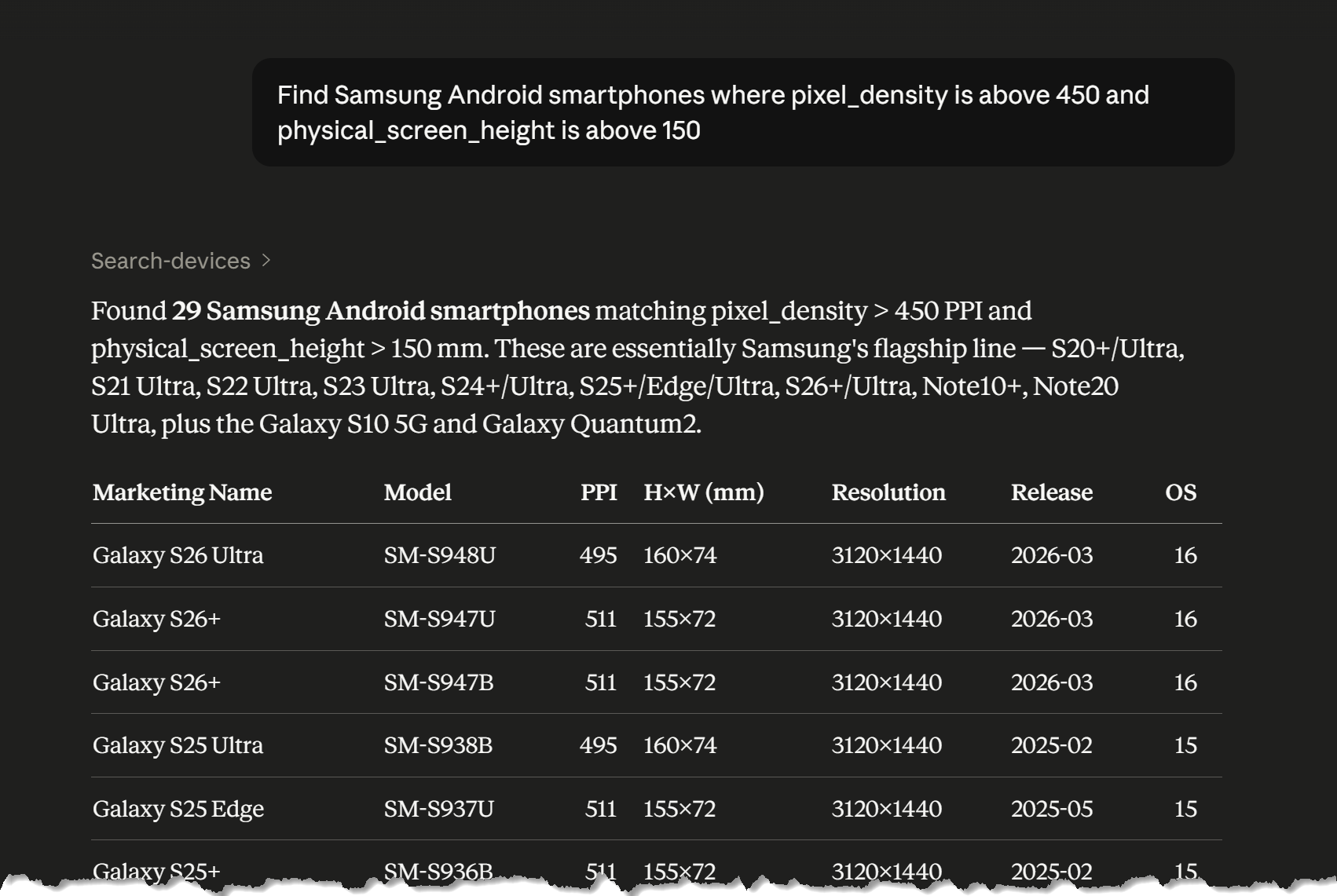
Describe what you're looking for and let the assistant find matching devices in the WURFL catalog. Combine filters across any WURFL capabilities — form factor, operating system, screen dimensions, release date, brand, and more. The assistant translates your criteria into a WURFL search and returns the matches.
Example: "Find Samsung Android smartphones where pixel_density is above 450 and physical_screen_height is above 150"
Example: "Show me all tablets running iOS with a physical screen wider than 200mm"
Explore Device Variants
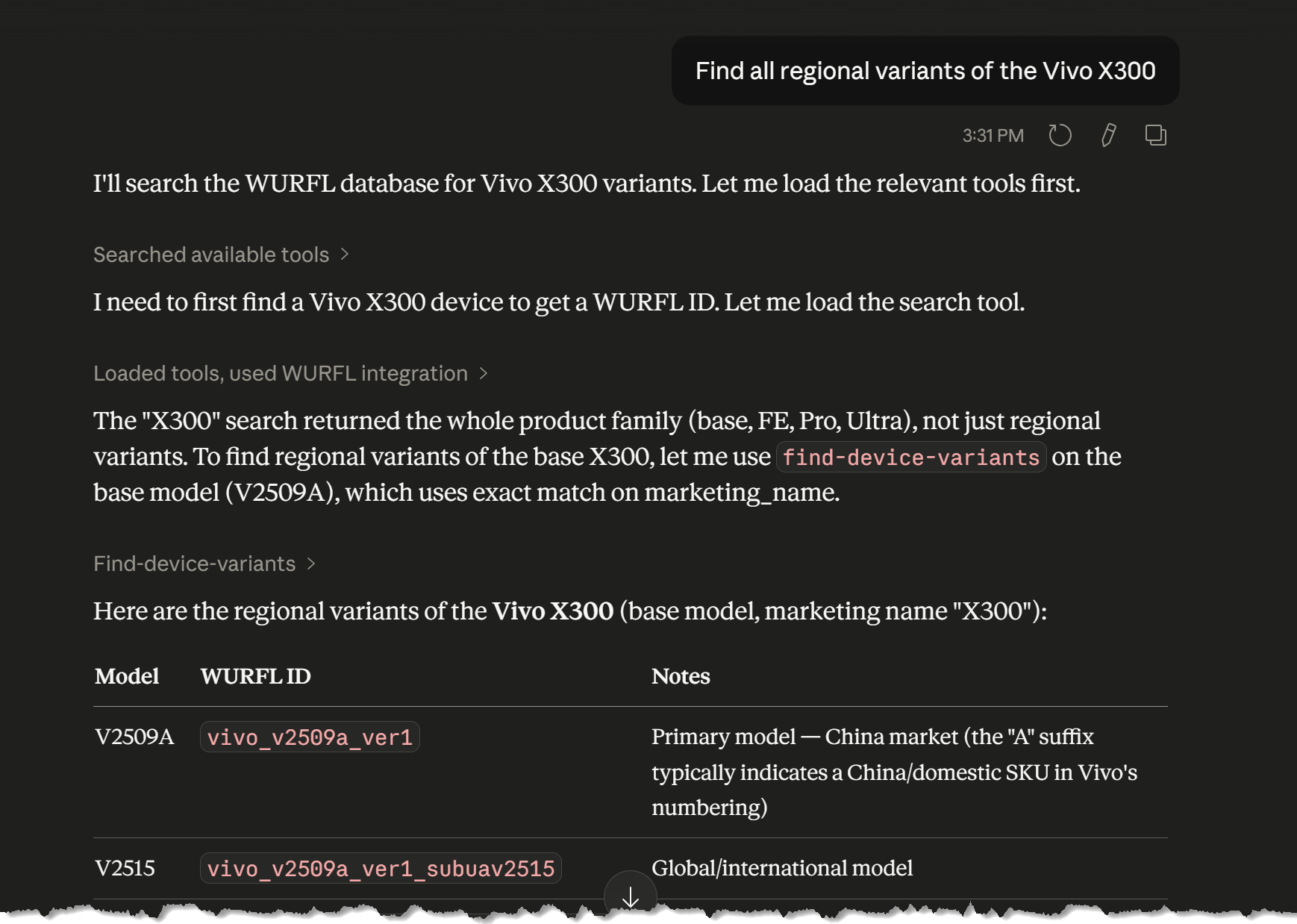
Device models frequently ship under different model numbers across regions and carriers. Given any device, the WURFL Gateway MCP can return the full family — all variants sharing the same brand and marketing name — so you can see the complete picture of a product line's regional and carrier distribution.
Example: "Find all regional variants of the Vivo X300"
Example: "What model numbers exist for this device? [WURFL ID or device name]"
Compare Devices
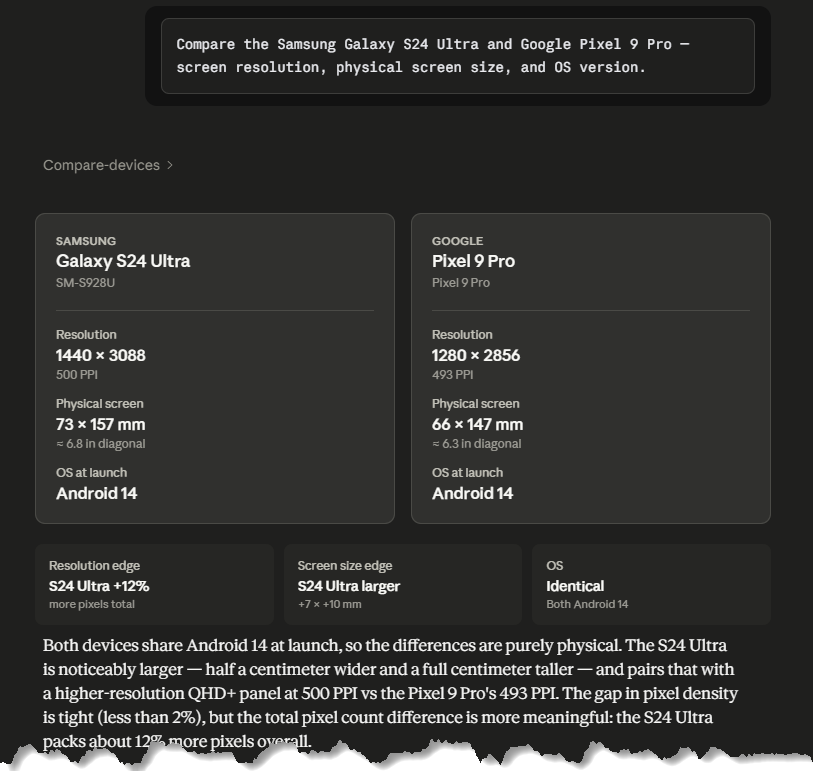
Ask your AI assistant to compare two or more devices side by side across any set of WURFL capabilities. Results include which capabilities differ between devices and which are identical — useful for competitive analysis or evaluating device options against specific technical requirements.
Example: "Compare the Samsung Galaxy S24 Ultra and Google Pixel 9 Pro — screen resolution, OS, and form factor"
Example: "What are the differences between these two devices: [device names or IDs]"
Understand a Brand's Device Presence
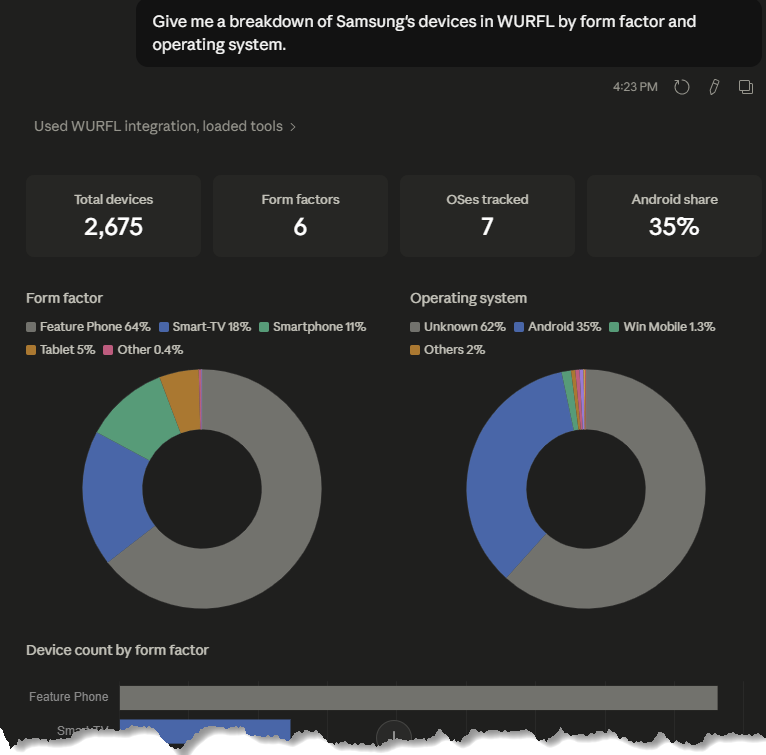
Before writing a line of code, it helps to know what you're actually working with. The WURFL Gateway MCP can answer the kind of question that comes up before you make technical decisions: how many devices does a brand have in WURFL, what form factors do they cover, what operating systems do they run, and how current is the data?
Example: "Give me a breakdown of Samsung's devices in WURFL by form factor"
Example: "What is the latest Apple device in the WURFL database, and what operating systems do Apple devices run?"
Example: "How many Xiaomi smartphones are in WURFL?"
Analyze Capability Distribution
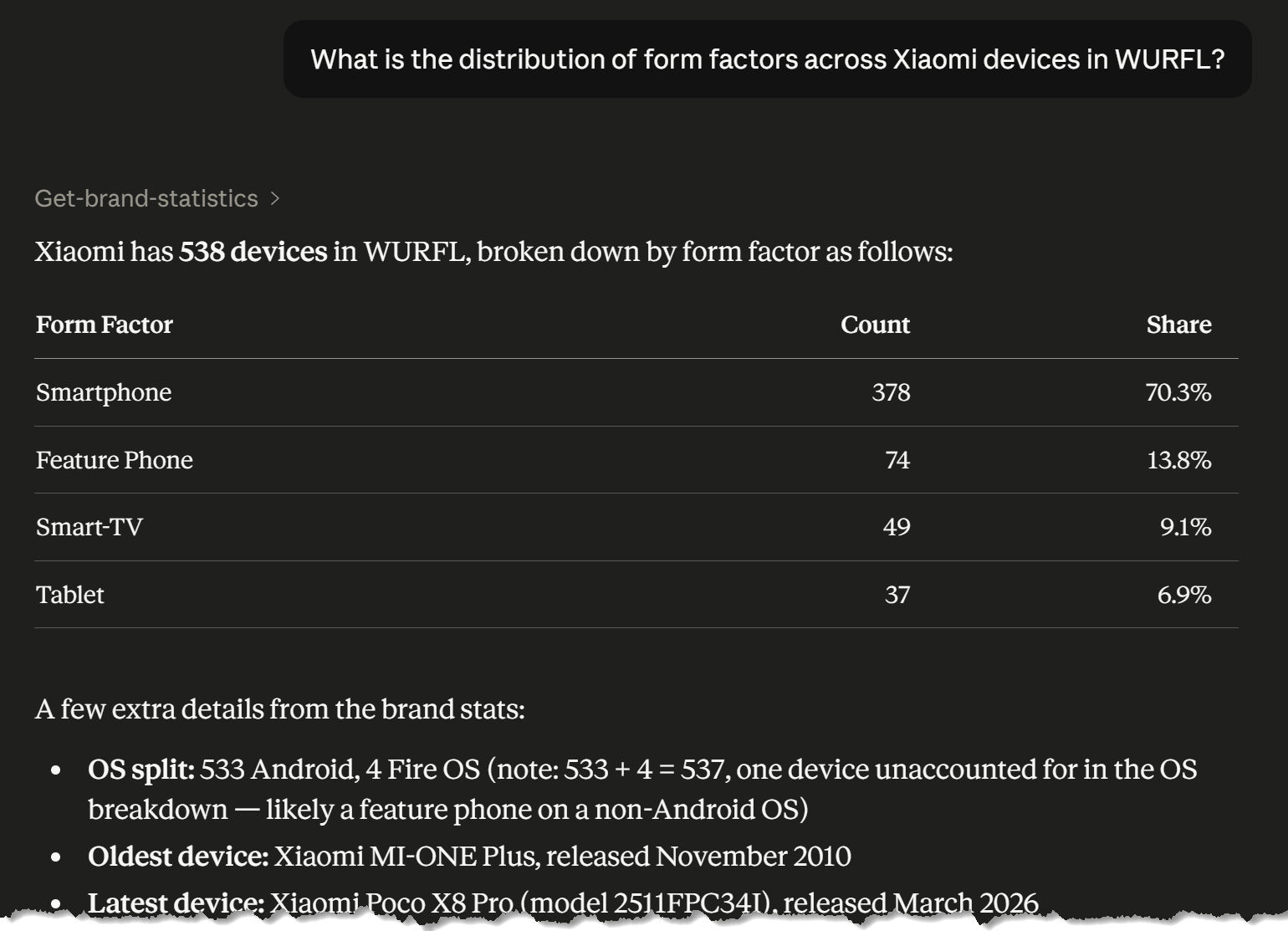
See how a capability's values are distributed across a brand, form factor, or device category. Useful for understanding the composition of a target device set before making decisions about capability thresholds or filter criteria.
Example: "What is the distribution of form factors across Xiaomi devices in WURFL?"
Example: "What percentage of Samsung smartphones in WURFL run Android?"
Getting Started
Prerequisites
You'll need:
- A ScientiaMobile account
- An active QuWURFL subscription for full access to the device catalog and search tools
- A supported AI assistant (Claude Desktop, Claude Code, Cursor, or VS Code Copilot)
- An internet connection
Note: Device identification is available without a QuWURFL subscription. All other tools require an active subscription.
Authentication
Authentication works the same way as the WURFL Docs MCP Server — you'll log in with your ScientiaMobile account credentials the first time you use the connector. Adding the server URL is all the configuration you need.
Choose Your Setup Path
Pick your AI assistant and follow the setup guide:
Common Questions
Q: Do I need a QuWURFL subscription to use this connector?
A: Device identification (submitting a User-Agent string to identify a device) does not require a subscription. All other tools — device search, catalog browsing, comparison, and capability exploration — require an active QuWURFL subscription. If you attempt to use a gated tool without a subscription, you will receive an access denied response with instructions for getting started.
Q: How is this different from the WURFL Docs MCP Server?
A: The WURFL Docs MCP Server is a free connector that gives your AI assistant access to WURFL documentation, capability definitions, help center articles, and basic device detection. The WURFL Gateway MCP is a separate paid connector that gives direct access to the WURFL device database — search, filter, compare, and retrieve device capability information. The two connectors can be used independently or alongside each other.
Q: What capabilities can I access?
A: All WURFL capabilities are available, including premium capabilities. Premium capabilities return data alongside a response-level note directing you to sales for information on premium add-on licensing for usage in your actual WURFL product(s).
Claude Desktop Setup
System Requirements
- Claude Desktop installed (download here)
- Pro, Max, Team, or Enterprise plan required
- ScientiaMobile account
- Internet connection
Setup Steps
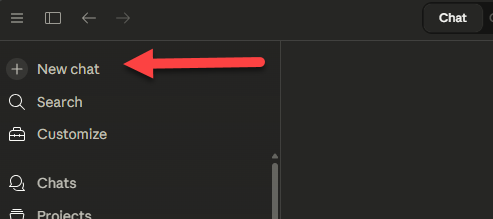
Step 1: Open a New Chat
Launch Claude Desktop and click the + button to start a new chat.
Step 2: Access Connectors
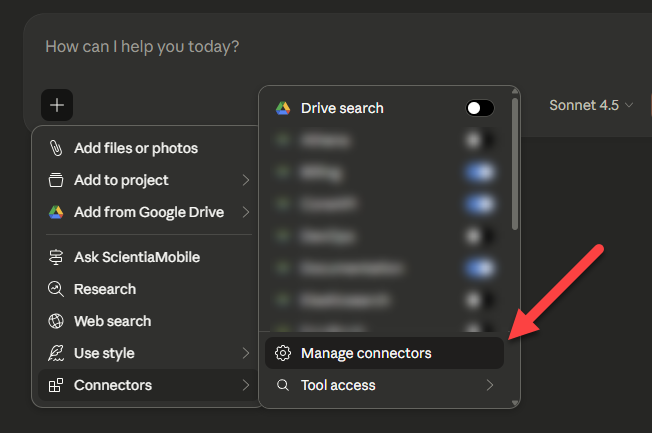
In the chat window, expand the + sign, then look for the Connectors option and hover on it.
Click on Manage Connectors to access the connectors management page.
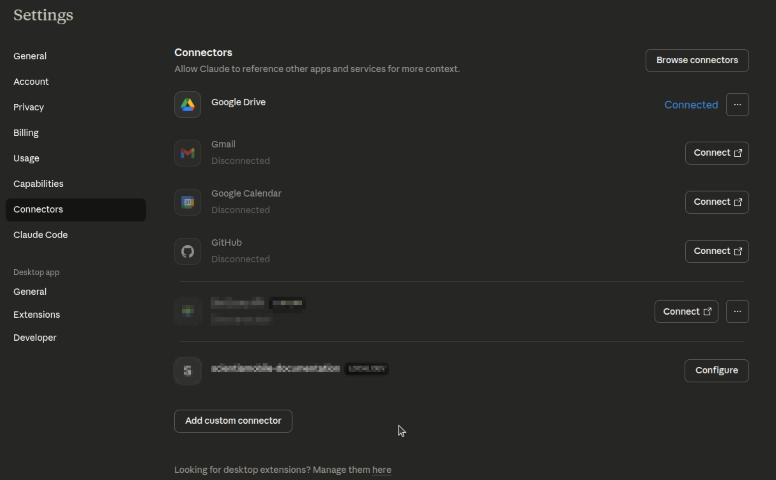
The Connectors management page allows you to add and manage connections to external MCP servers like the WURFL Gateway MCP.
Step 3: Add Custom Connector
Click the Add custom connector button at the bottom of the page.
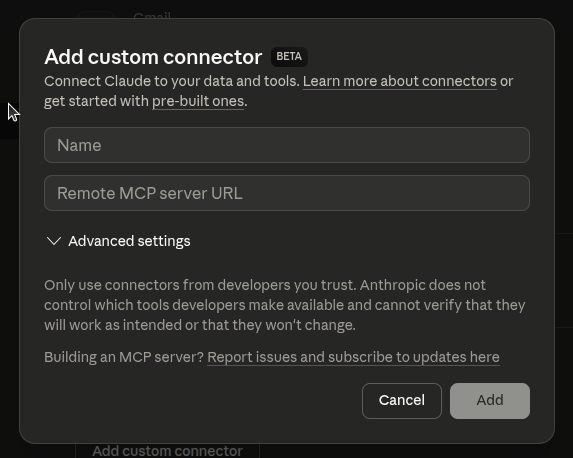
Note: The "Add custom connector" feature is currently in BETA, and is limited to account owners. If you don't see this option, or are unable to interact with it, please check with your IT department or contact Claude support.
Step 4: Enter WURFL Gateway Server Details
In the Add custom connector dialog:
- Name: Enter
WURFL Gateway(or any name you prefer) - Remote MCP server URL: Enter:
https://mcp-wurfl.scientiamobile.com/mcp - Click Add
Step 5: Connect to WURFL Gateway
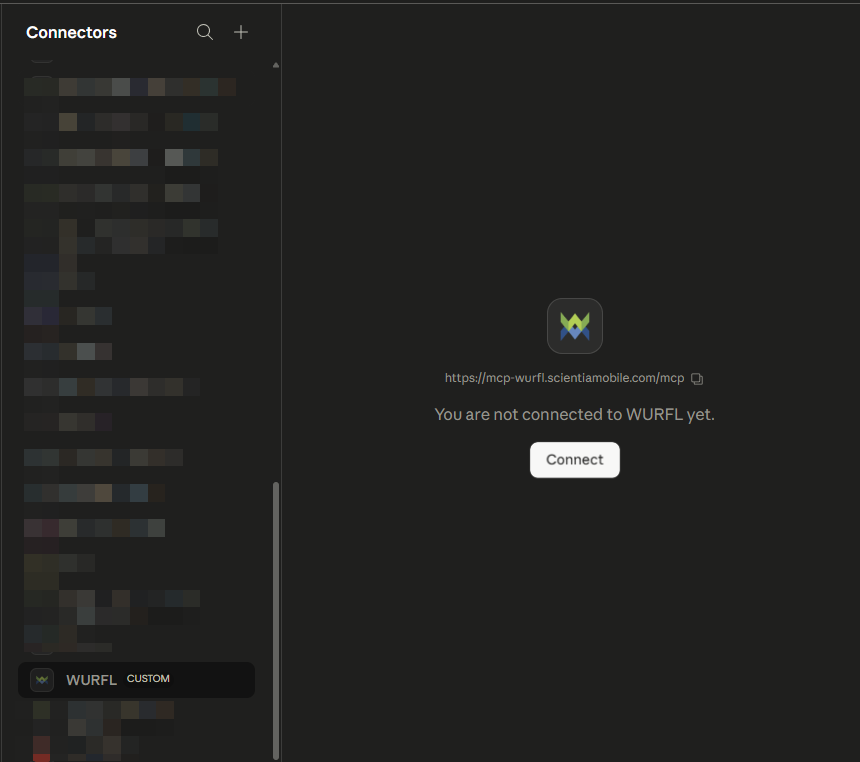
- Back in the Connectors list, find WURFL Gateway
- Click the Connect button on the right of WURFL Gateway
Step 6: Authenticate with ScientiaMobile
Your browser opens to the ScientiaMobile OAuth login page.
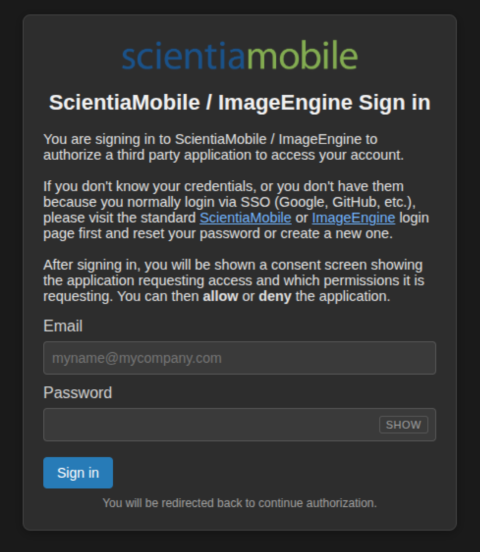
Enter your ScientiaMobile credentials: - Your ScientiaMobile account email - Your ScientiaMobile account password
Step 7: Grant Permissions
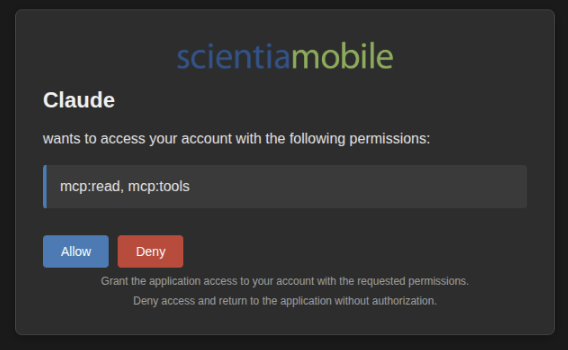
- Review the permissions:
mcp:read, mcp:tools - Click Allow to grant access
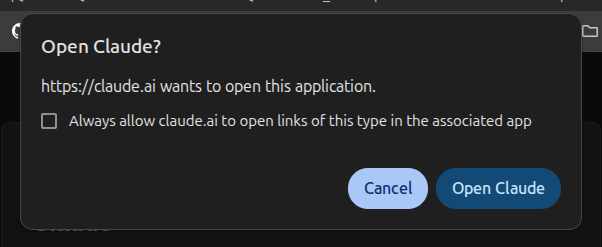
Step 8: Open Claude Desktop
After approving permissions, the browser will ask for permission to return to Claude Desktop. Click Open Claude.
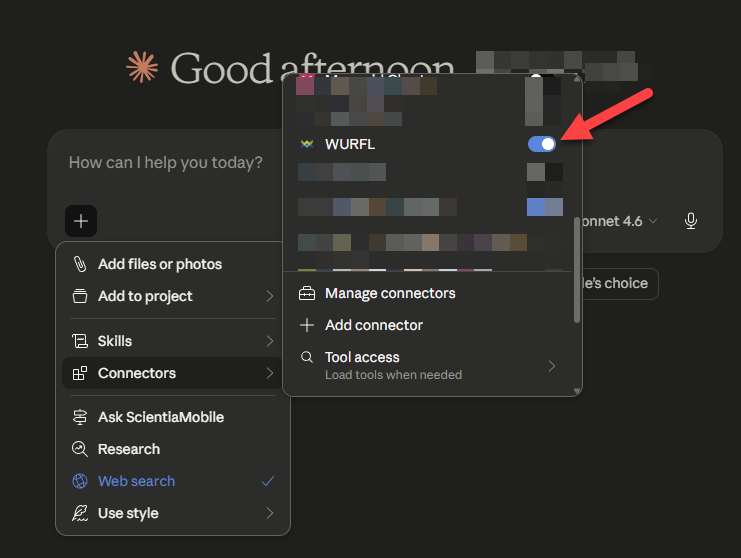
Step 9: Verify Connection
The connector status changes to Connected. You're now ready to use the WURFL Gateway MCP!
Using MCP Tools in Claude Desktop
In a Claude chat, try asking a question about devices:
Example: Find all Xiaomi smartphones released between 2022 and 2024 with a screen density above 400 PPI
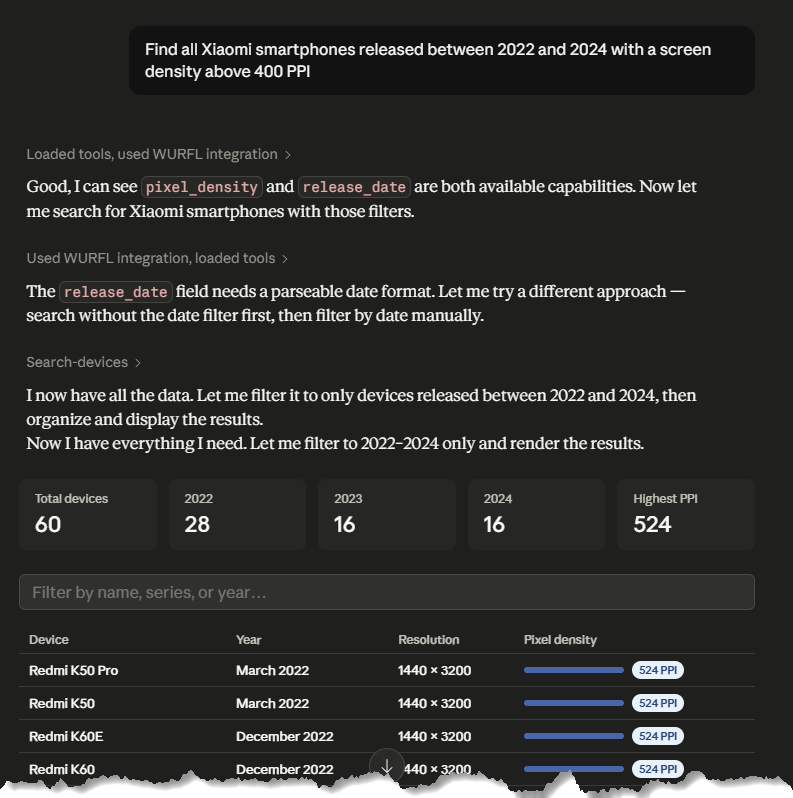
On your first tool use, Claude shows a dialog asking permission to use the WURFL Gateway connection. Review the tool description and click Always Allow to permit future uses without prompting.
You're done! Your Claude Desktop is now connected to the WURFL Gateway MCP. Start asking questions about devices, capabilities, and more.
Claude Code / CLI Setup
System Requirements
- Claude Code installed (download here)
- ScientiaMobile account
- Terminal/command line access
- Internet connection
Setup Steps
Step 1: Add the MCP Server
Open your terminal and run this command to add the WURFL Gateway MCP Server:
claude mcp add -s user -t http wurfl-gateway https://mcp-wurfl.scientiamobile.com/mcp

Step 2: Verify the MCP Server
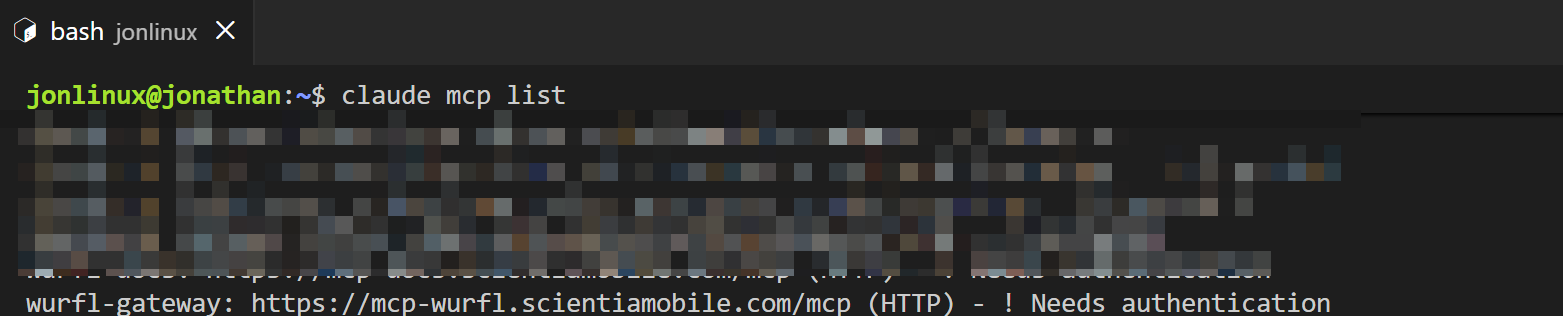
Run this command to verify that wurfl-gateway appears in your MCP server list:
claude mcp list
Step 3: Launch Claude Code
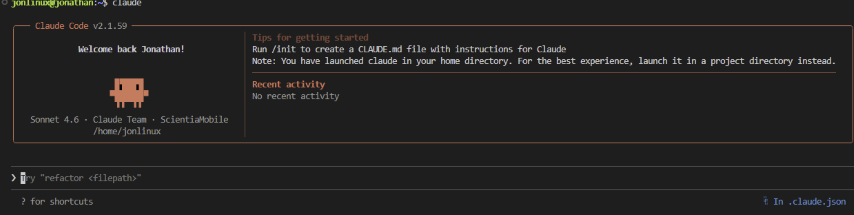
Start Claude Code by running:
claude
Claude Code opens with a welcome screen:
Step 4: Manage and Authenticate MCP Servers
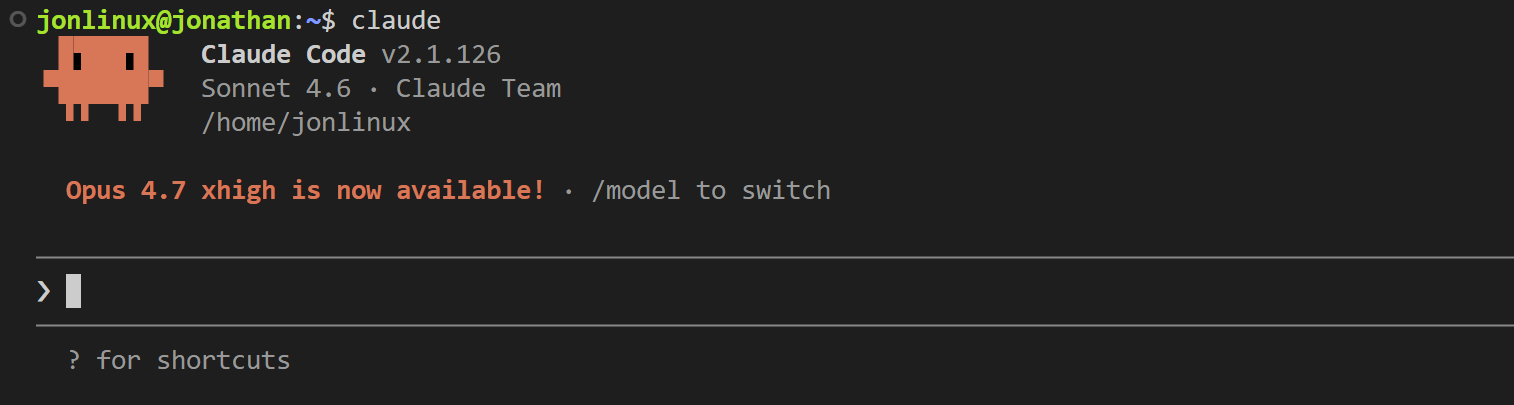
Type the MCP management command:
/mcp
Claude Code displays a list of all configured MCP servers with their connection status.
Step 5: Authenticate
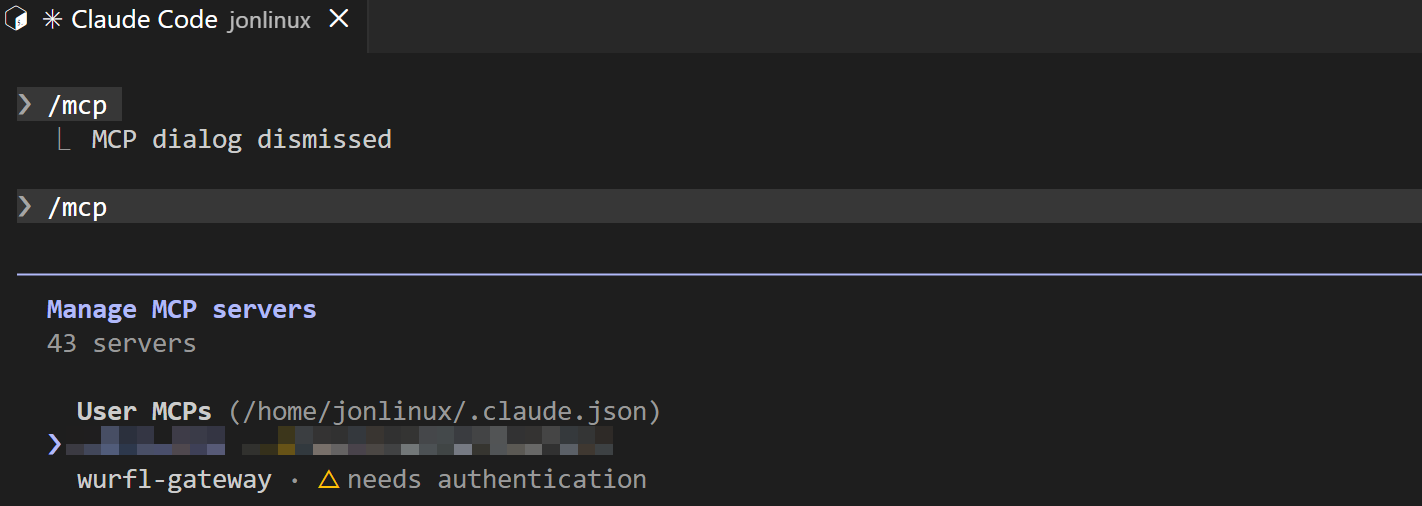
To use the server, you need to authenticate the wurfl-gateway MCP server:
- Navigate using arrow keys to select the server
Press Enter to show the details for the MCP server including authentication status
Press Enter on Authenticate to start the authentication process
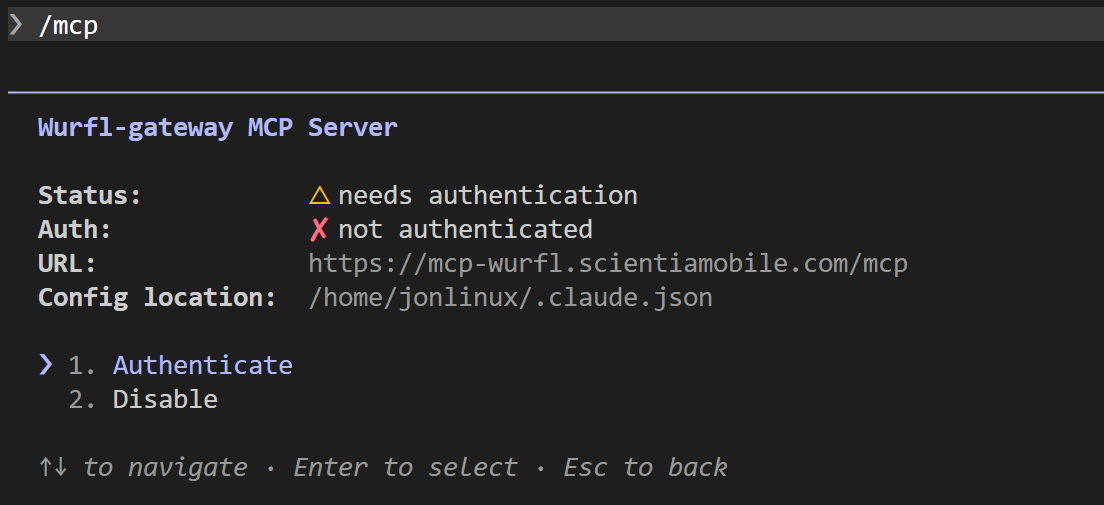
Claude Code will attempt to open your web browser to the ScientiaMobile OAuth login page. If your browser doesn't open automatically, copy the on-screen URL to your browser manually.
Authentication Flow:
Login: Enter your ScientiaMobile email and password
Consent: Review requested permissions (mcp:read, mcp:tools) and click Allow
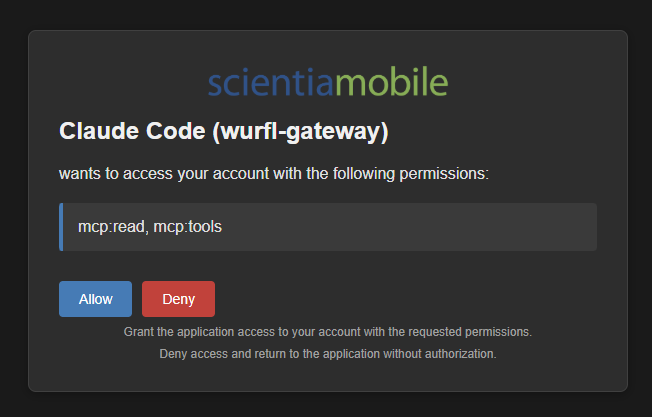
Success Page: A page with a success message will appear
- Success: Claude confirms that authentication was successful. Use the
/mcpcommand again to verify. The server status should now show√ connected
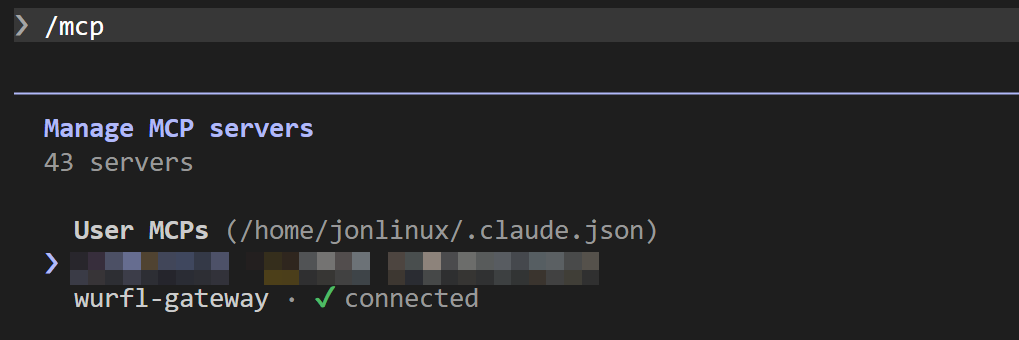
Step 6: Verify Setup
Now type a prompt to verify the server works:
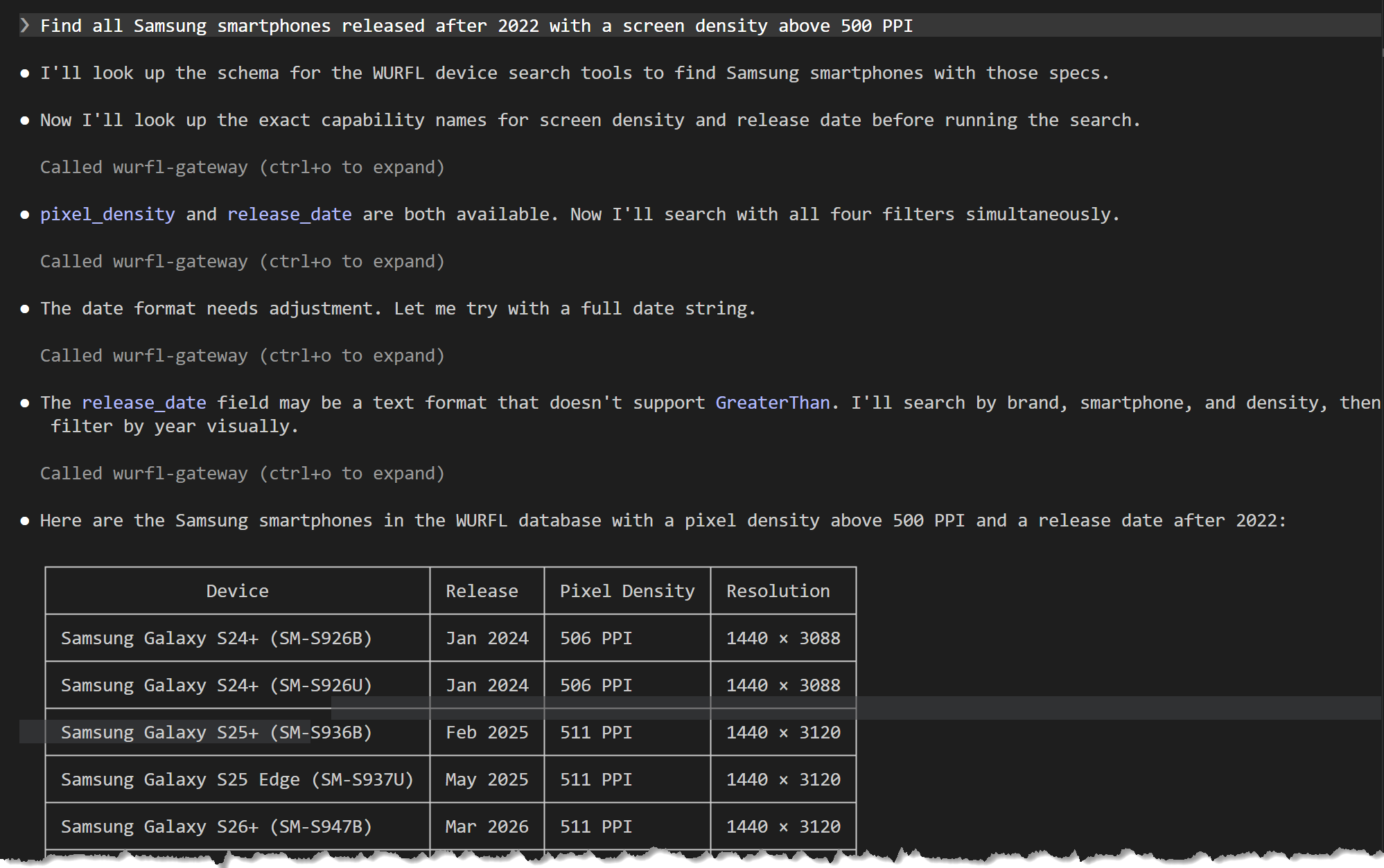
Example: Find all Samsung smartphones released after 2022 with a screen density above 500 PPI
Claude automatically uses the connected WURFL Gateway MCP server to answer your question. You will be asked to allow the usage of the MCP tools. Depending on the complexity of the request, Claude may require approval for multiple tools. The first time you use a tool, it may take a few seconds—subsequent calls are faster due to caching.
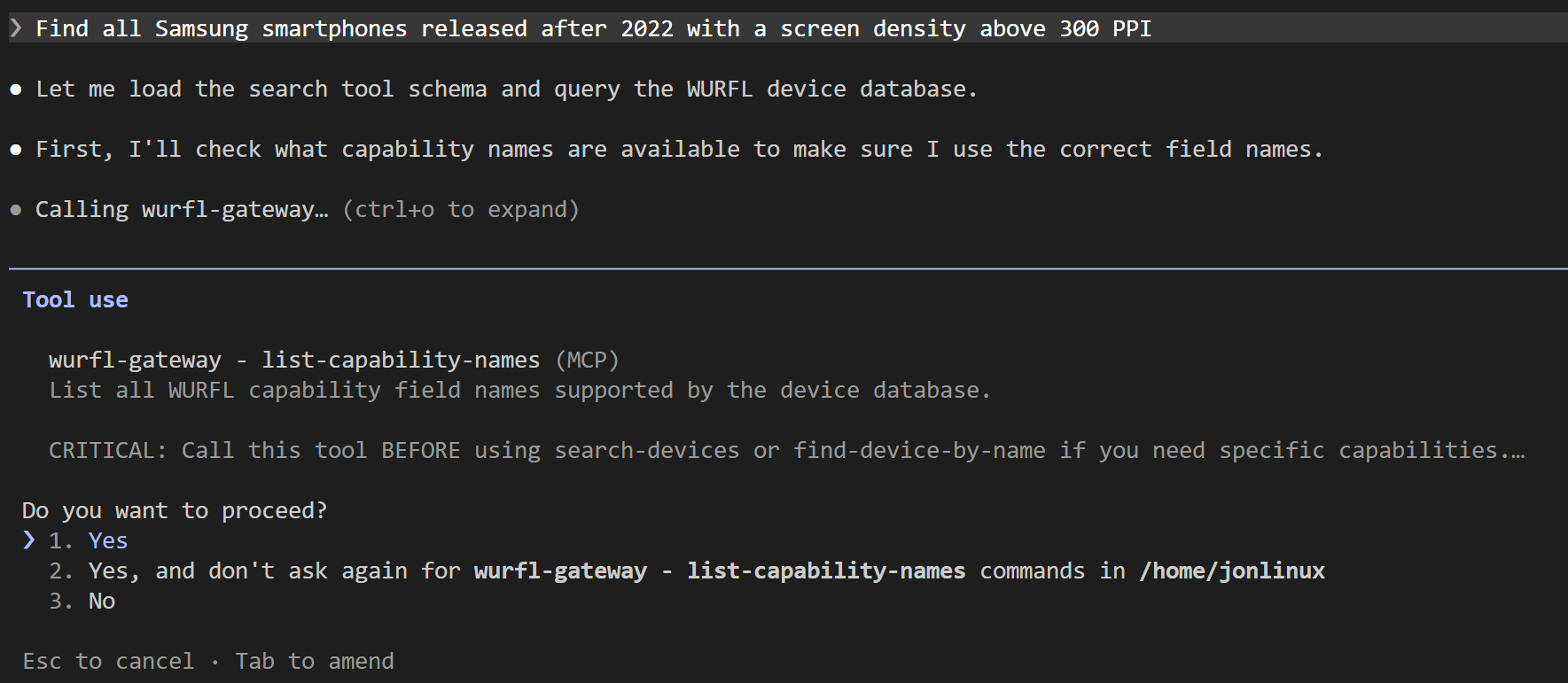
When you allow it, the result will be processed and shown.
Cursor Setup
System Requirements
- Cursor installed (download here)
- ScientiaMobile account
- Internet connection
Setup Steps
Step 1: Open MCP Settings
- Open Cursor
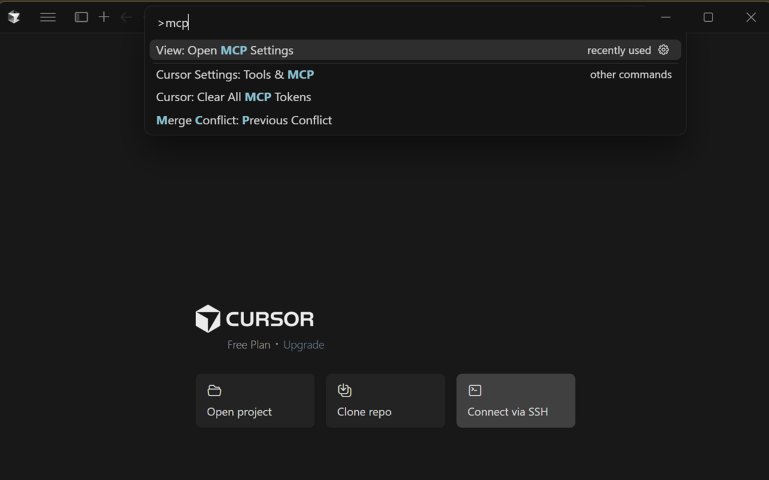
- Open the command palette:
- macOS: Cmd+Shift+P
- Windows/Linux: Ctrl+Shift+P
- Type:
MCP - Click on
View: Open MCP Settings
Step 2: Configure the WURFL Gateway MCP Server
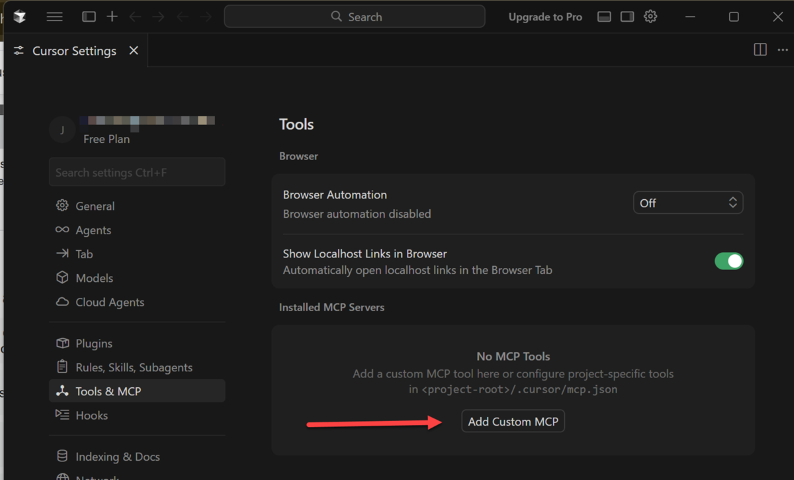
The Tools & MCP settings panel opens automatically.
Click on the Add Custom MCP button. The mcp.json file will open.
Production Configuration (Recommended)
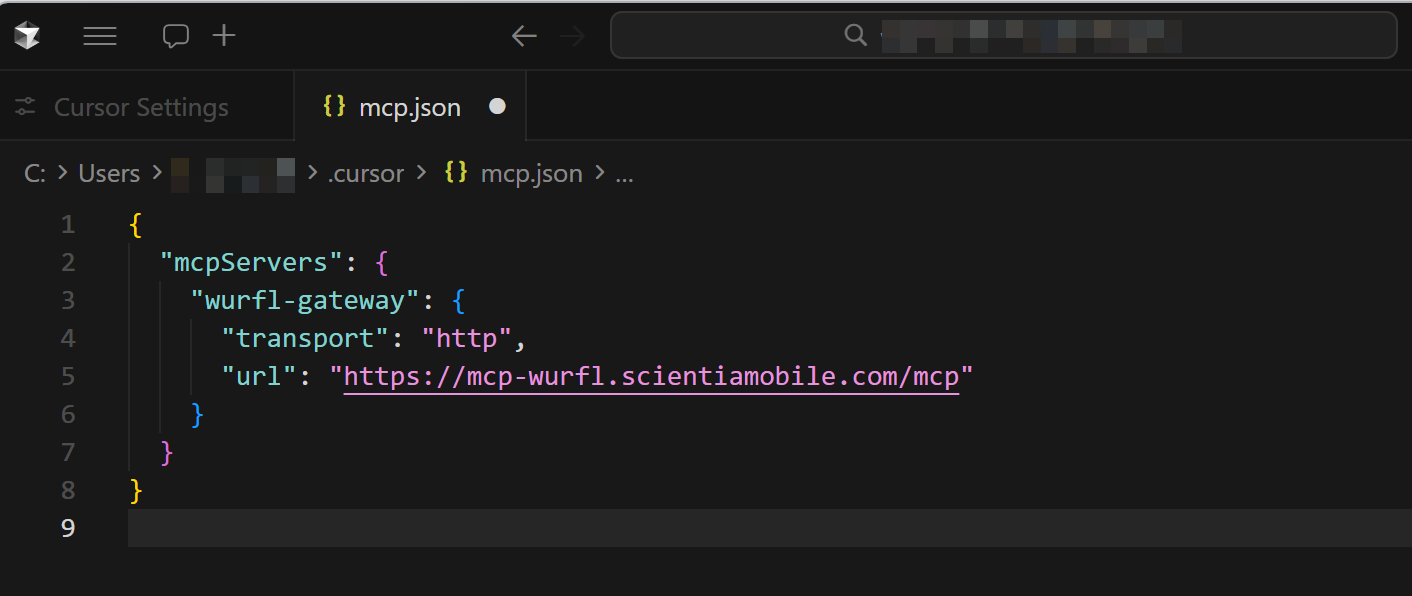
Add the wurfl-gateway field to your mcpServers section:
{
  "mcpServers": {
    "wurfl-gateway": {
      "transport": "http",
      "url": "https://mcp-wurfl.scientiamobile.com/mcp"
    }
  }
}
Step 3: Save Configuration
- Save the file (Cmd+S or Ctrl+S)
- Cursor automatically reloads the MCP configuration
- No restart required! (Unlike other editors)
Configuration changes take effect immediately in Cursor.
Cursor will notify you that the MCP Server needs authentication. Click on the notification.
If you miss the notification, don't worry — Cursor will ask you again on first use, or you can navigate to the Tools & MCP Panel directly.
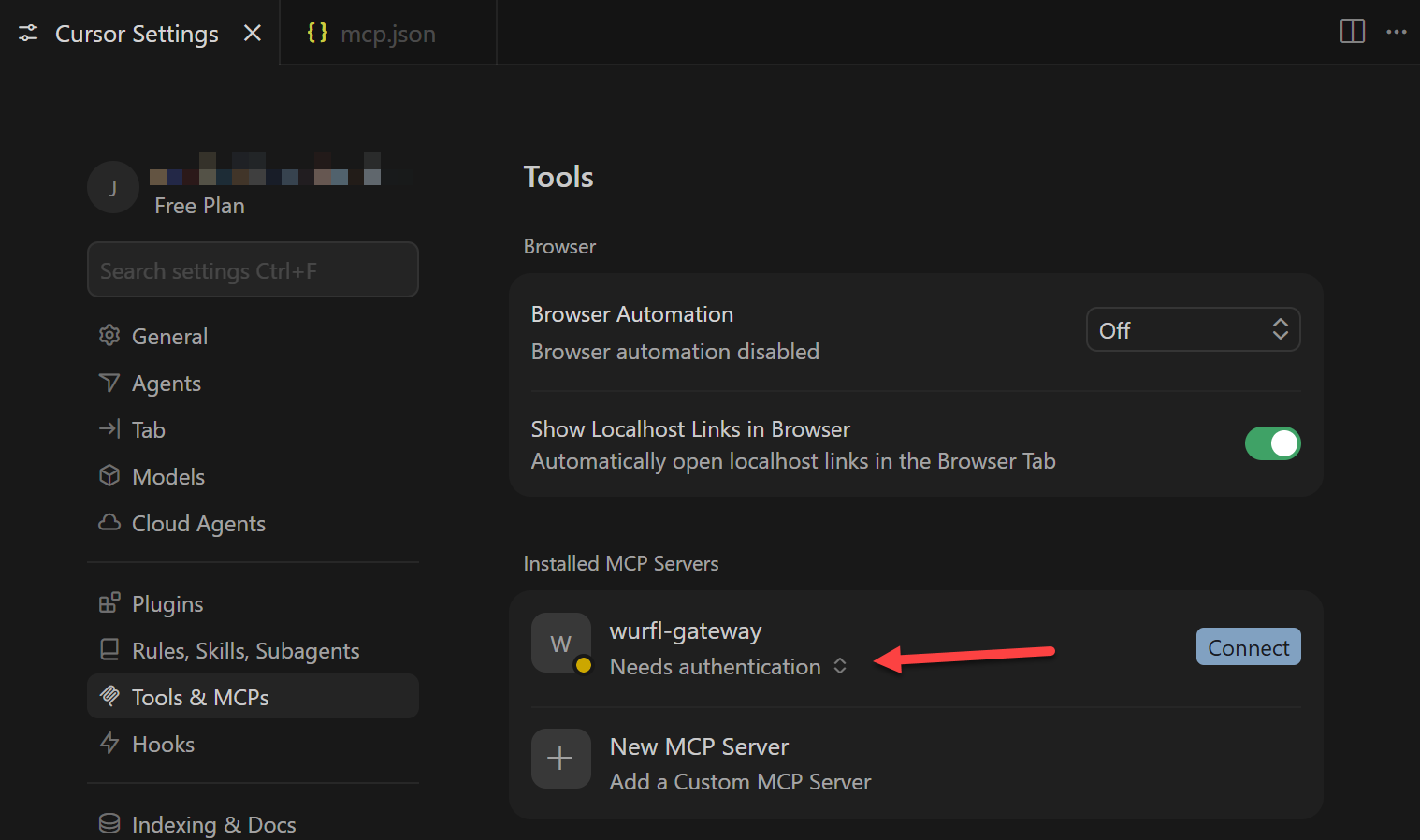
Step 4: Set Up Authentication
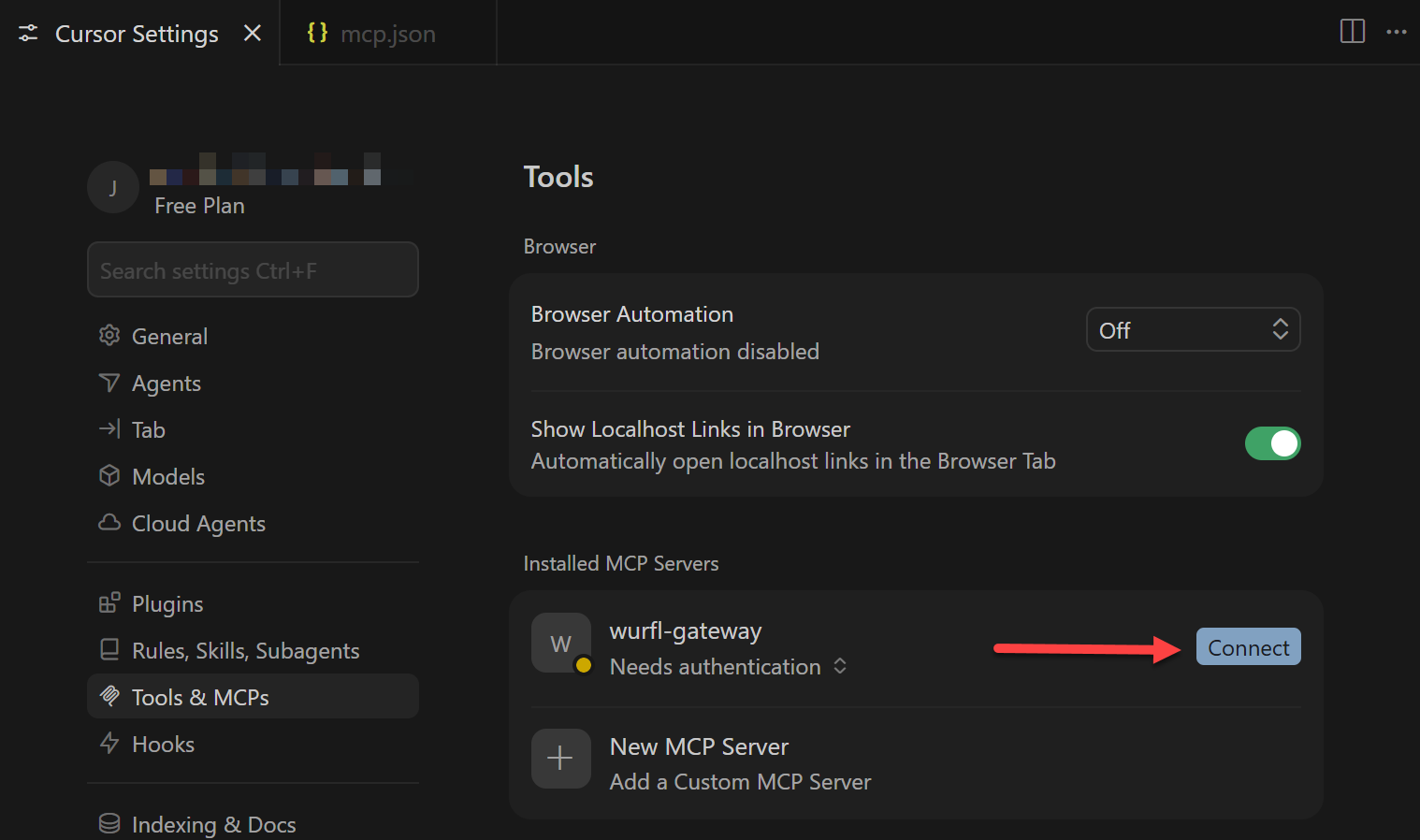
In the Tools & MCP Panel you will see the wurfl-gateway MCP Server and a text that says Needs authentication.
Click on the Connect button on the right.
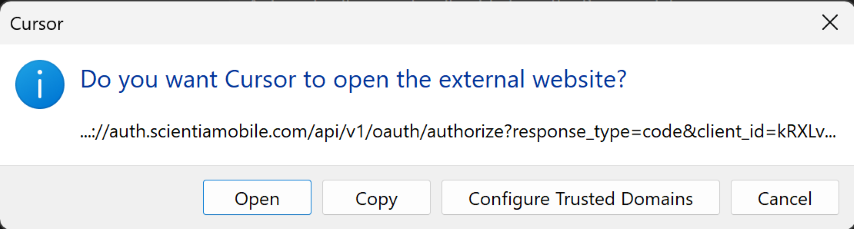
Cursor will ask you to open a browser window. Click on the Open button.
Your default browser will open to the ScientiaMobile authentication form.
Authentication Flow
Login: Enter your ScientiaMobile email and password
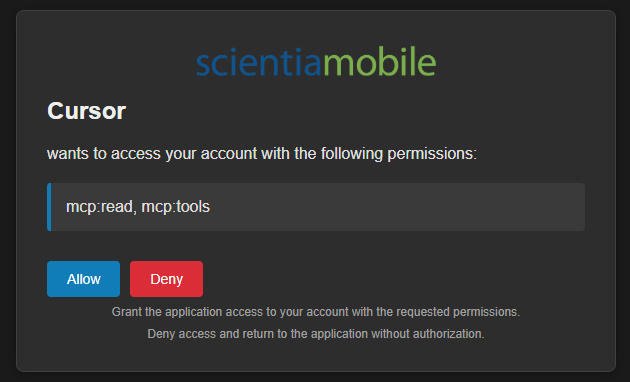
Consent: Review requested permissions (mcp:read, mcp:tools) and click Allow
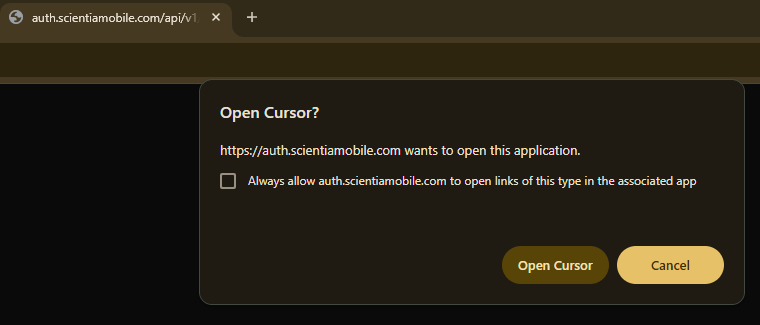
Redirect: The browser will ask for permission to redirect you back to Cursor. Click Open Cursor.
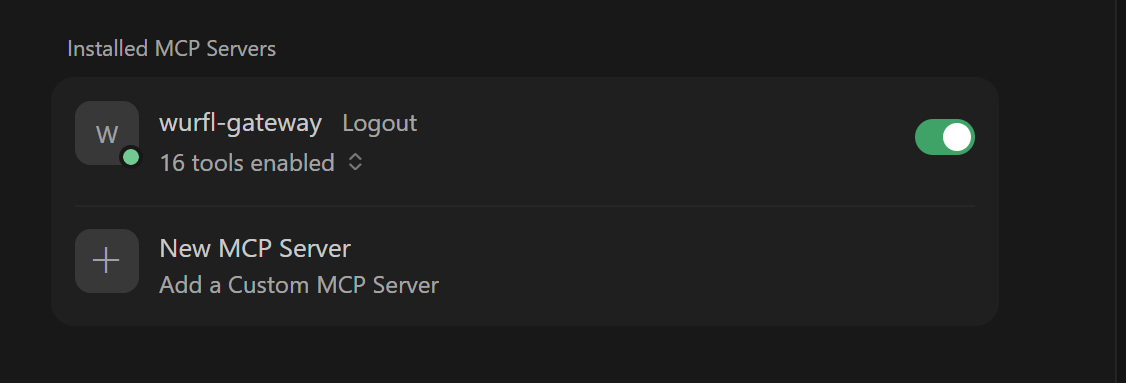
The connector status now shows the WURFL Gateway tools enabled.
Using MCP Tools in Cursor
Chat Panel
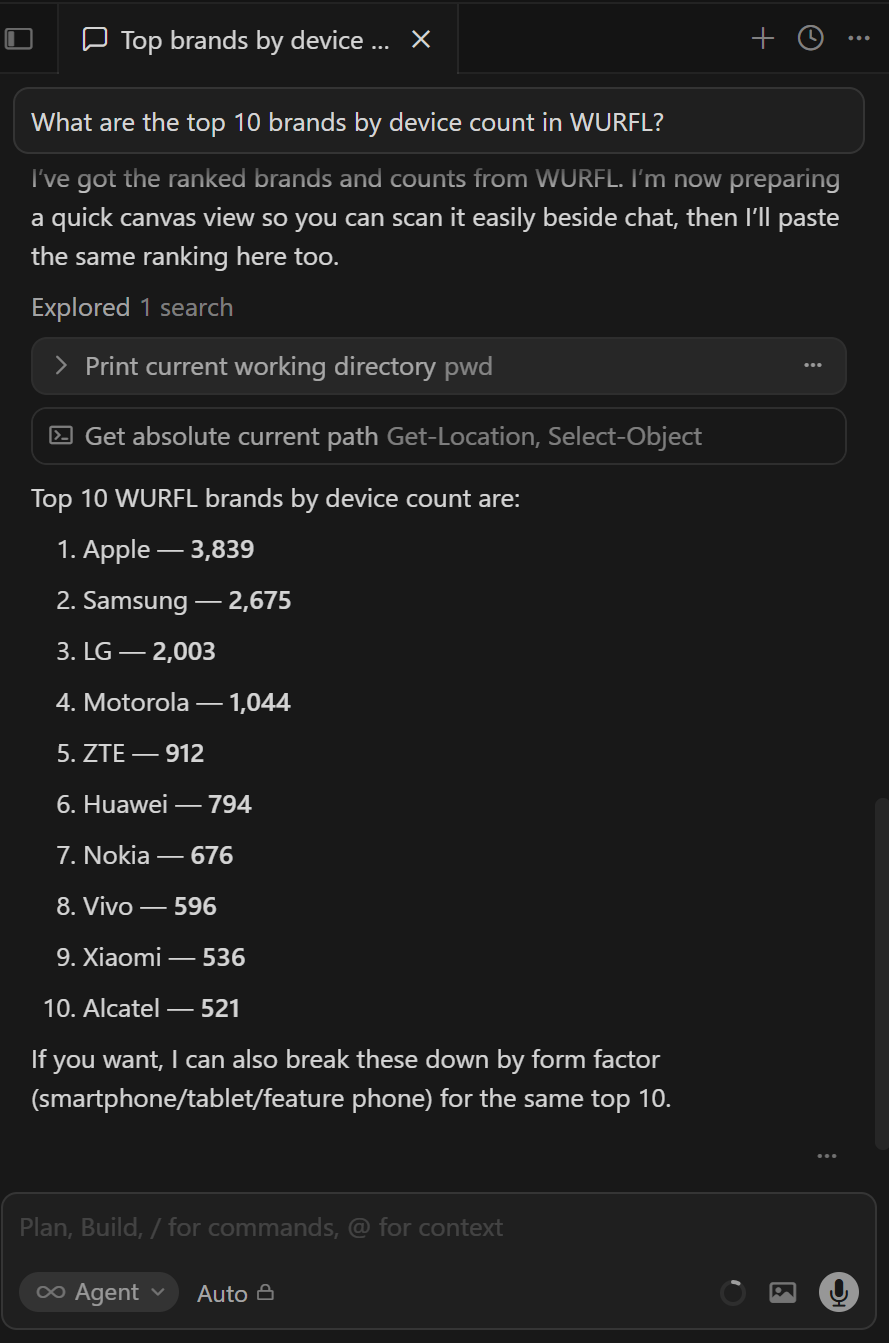
The Chat Panel is the main interface for using MCP tools. Open it with Cmd+Shift+L (Ctrl+Shift+L on Windows/Linux):
Example: What are the top 10 brands by device count in WURFL?
VS Code Copilot Setup
System Requirements
- VS Code installed (download here)
- GitHub Copilot extension installed and activated
- ScientiaMobile account
- Internet connection
Setup Steps
Step 1: Execute MCP: Add Server
- Open VS Code
- Open the command palette:
- macOS: Cmd+Shift+P
- Windows/Linux: Ctrl+Shift+P
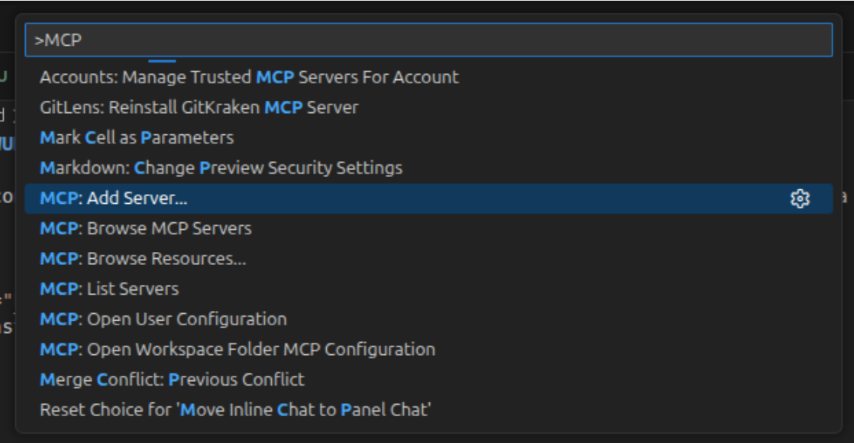
- Type:
MCP: Add Server
- Press Enter
Step 2: MCP Server Type Prompt
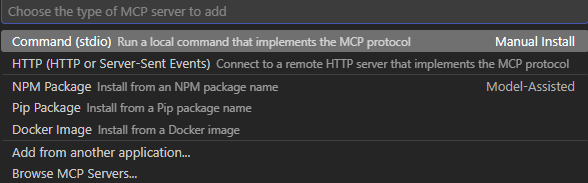
Select HTTP from the options displayed.
Step 3: Enter Server URL
VS Code will show you a prompt where to enter the server URL.

Enter the following address:
https://mcp-wurfl.scientiamobile.com/mcp
Press Enter.
Step 4: MCP Server ID
VS Code will ask you to name the MCP server.

Type in a descriptive ID of your choosing and hit Enter.
Step 5: Configuration Target
VS Code will ask you to choose whether the configuration target is Workspace or Global.

VS Code provides different scopes for settings. From VS Code documentation:
- Global settings — Settings that apply globally to any instance of VS Code you open.
- Workspace settings — Settings stored inside a workspace and only apply when that workspace is opened.
Step 6: Authentication
VS Code will automatically open the mcp.json file and shortly after an alert will ask you to allow authentication.
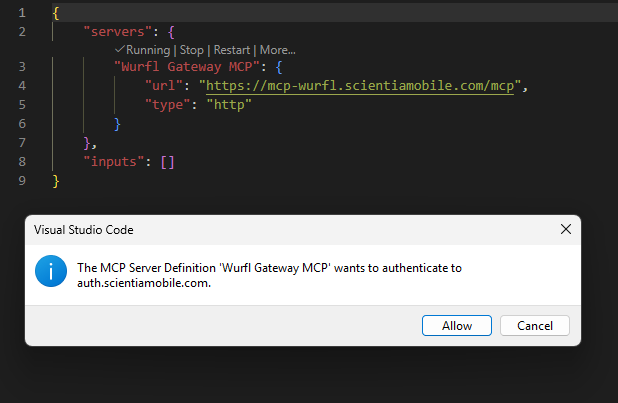
Click on the Allow button.
Next, VS Code will ask you to open a browser window. Click on the Open button.
Your default browser will open to the ScientiaMobile authentication form.
Authentication Flow:
Login: Enter your ScientiaMobile email and password
Consent: Review requested permissions (mcp:read, mcp:tools) and click Allow
Note: The AI assistant named on the permissions screen will vary depending on which AI model you have configured in VS Code Copilot.
Redirect: The browser will ask you to allow it to redirect you back to VS Code. Click Open ...
Step 7: Verify Configuration
Verify that the mcp.json file that should already be open contains the following:
{
    "servers": {
        "wurfl-gateway": {
            "url": "https://mcp-wurfl.scientiamobile.com/mcp",
            "type": "http"
        }
    },
    "inputs": []
}
Using MCP Tools in VS Code Copilot
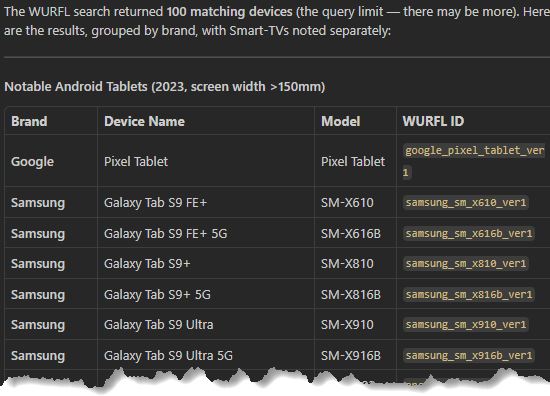
Now you can use the VS Code Chat feature to talk to your preferred AI model and allow it to use the WURFL Gateway MCP tools.
Example: Find Android devices released in 2023 with a physical screen wider than 150mm
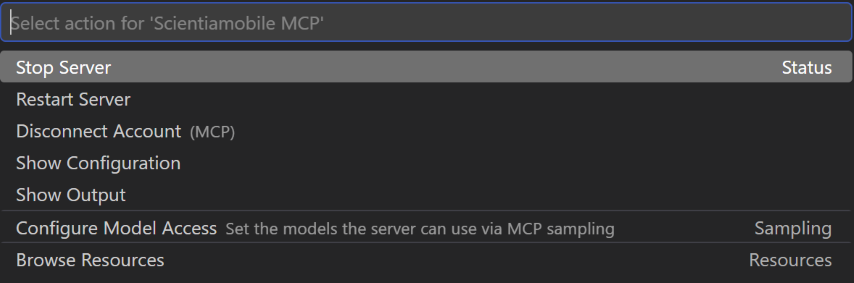
Managing MCP Servers
View Configured Servers
- Open the command palette: Cmd+Shift+P (macOS) / Ctrl+Shift+P (Windows/Linux)
- Type:
MCP: List Servers
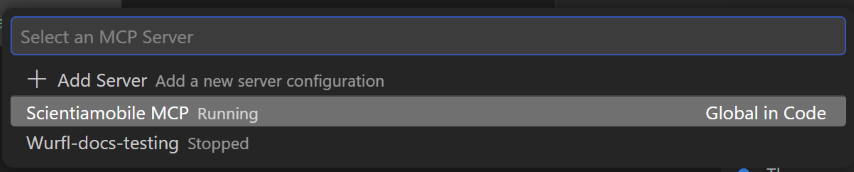
This will show you a list of all configured MCP servers with their connection status. Select the server you want to manage and hit Enter.
© 2026 ScientiaMobile Inc.
All Rights Reserved.
NOTICE: All information contained herein is, and remains the property of ScientiaMobile Incorporated and its suppliers, if any. The intellectual and technical concepts contained herein are proprietary to ScientiaMobile Incorporated and its suppliers and may be covered by U.S. and Foreign Patents, patents in process, and are protected by trade secret or copyright law. Dissemination of this information or reproduction of this material is strictly forbidden unless prior written permission is obtained from ScientiaMobile Incorporated.
1875 Campus Commons Dr.
Suite 300
Reston, VA 20191
USA


